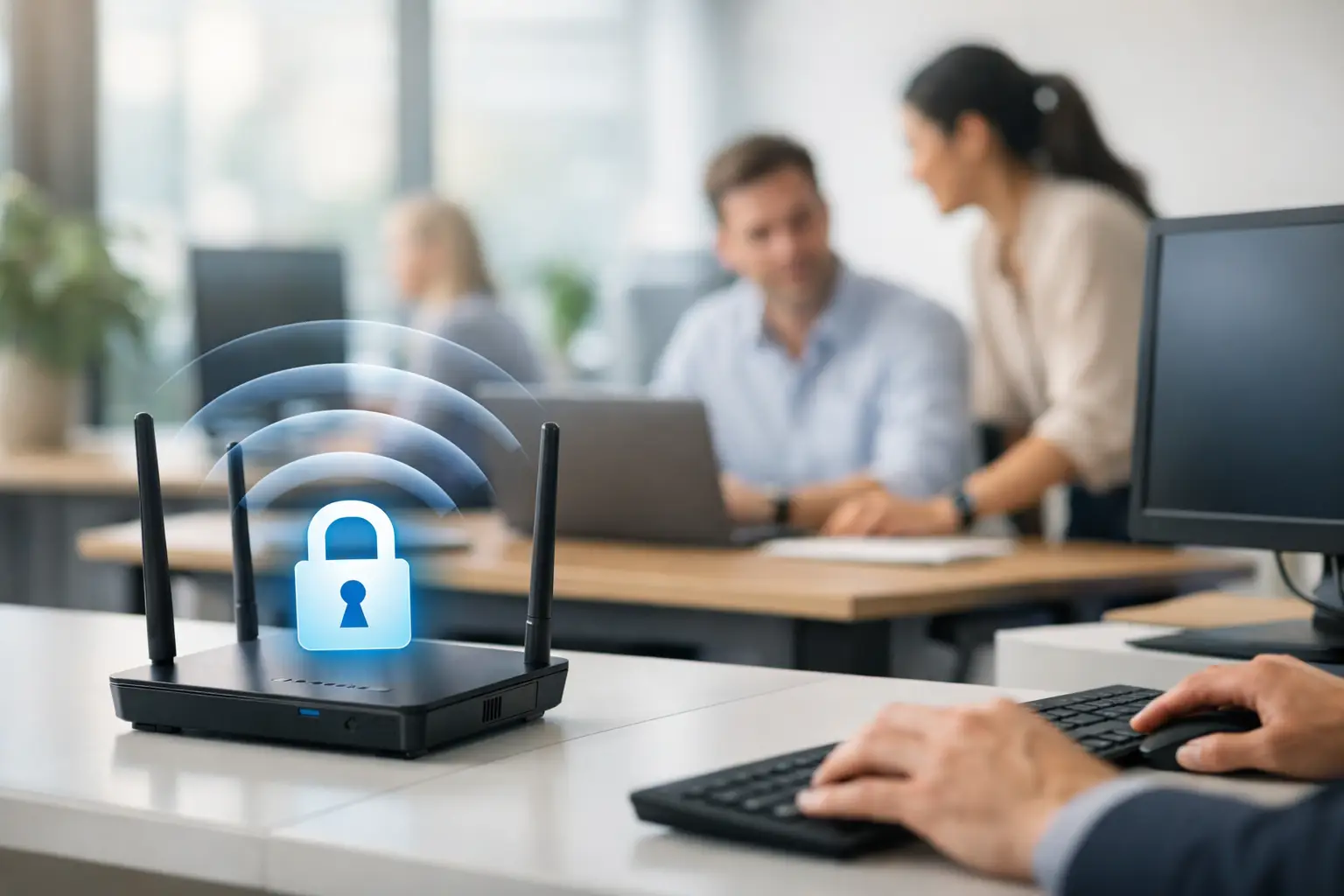
A compromised office wireless network rarely starts with a dramatic attack. More often, it begins with a former employee whose device still connects, a shared password passed to a visitor, or a guest network that can reach business systems. Knowing how to secure office wifi means treating wireless access as part of your business infrastructure, not simply a convenience for laptops and phones.
For offices, schools, retail locations, and multi-site businesses, the goal is clear: give authorized people reliable connectivity while limiting what an unauthorized user, infected device, or guest can access. The right approach protects daily operations without creating a network that is difficult for staff to use or for IT teams to manage.
How to Secure Office WiFi Starts With Visibility
Before changing passwords or buying new equipment, establish what is currently connected and how the network is configured. Many businesses discover old access points, unknown devices, duplicate network names, or consumer-grade routers that were installed as temporary fixes and never replaced.
Create an inventory of wireless access points, switches, firewalls, internet connections, network names, and connected device types. Include company laptops, phones, printers, meeting-room equipment, cameras, point-of-sale terminals, and building systems. This gives your IT team a practical baseline and helps identify devices that should never be sharing the same network.
The physical environment matters as well. Access points installed in poor locations can create weak coverage in work areas while allowing signals to extend unnecessarily into public spaces. A wireless site assessment helps determine where coverage is needed, where it should be reduced, and whether existing equipment can support modern security requirements.
Use Business-Grade Encryption and Authentication
Encryption prevents nearby users from reading wireless traffic or easily joining the network. At a minimum, office Wi-Fi should use WPA2-Enterprise or WPA3-Enterprise where supported. Older security methods, including WEP and WPA, are no longer appropriate for business use and should be retired.
A shared Wi-Fi password may be acceptable for a very small, low-risk environment, but it creates a management problem as a company grows. When one employee leaves or a password is shared too widely, the only reliable response is to change the password for everyone. That interrupts users, connected devices, and business processes.
Enterprise authentication is more controlled. Each employee signs in with an individual identity, often linked to a directory service or identity platform. Access can be removed for one person without affecting the rest of the company, and activity can be tied to a specific user rather than an anonymous shared credential.
For organizations with a mix of managed and personal devices, certificate-based authentication can add another layer of assurance. It takes more planning to deploy, but it reduces dependence on passwords and makes it harder for unauthorized devices to connect.
Separate Users, Guests, and Business Devices
Network segmentation is one of the most effective controls available. It limits the damage if a device is compromised and prevents guests from moving through systems they do not need to reach.
A well-designed office wireless environment commonly separates employee devices, guest devices, corporate mobile devices, and operational equipment such as printers, cameras, access-control panels, or Internet of Things devices. These groups can use separate network names, virtual LANs, and firewall policies.
Guest Wi-Fi should provide internet access only. It should not have a route to file servers, printers, conferencing equipment, finance systems, or administrative interfaces. A guest captive portal can be useful for visitor access and acceptable-use messaging, but the core protection comes from network isolation, not the portal itself.
Operational devices deserve particular attention. CCTV cameras, biometric readers, smart displays, and building controls can be essential to the workplace but may not receive frequent software updates. Place them on a restricted network, allow only the connections they require, and prevent them from reaching general employee devices.
Segmentation does involve trade-offs. A printer on a separate network, for example, may need carefully defined rules so authorized staff can still print. The answer is not to remove the separation, but to configure only the necessary access and test it before deployment.
Secure the Network Equipment Behind the Wi-Fi
Wireless security depends on more than the access points mounted on the ceiling. The firewall, switches, cabling, internet connection, and administrative settings all affect the security and reliability of the service.
Change default administrator credentials immediately and give each IT administrator an individual account. Enable multi-factor authentication for cloud-managed wireless platforms and firewall administration whenever available. Shared administrator logins make it difficult to know who made a change and can leave critical access active long after a staff member or contractor has left.
Keep access point firmware, switch firmware, and firewall software current. Updates often address known security vulnerabilities as well as stability issues that lead to dropped connections and support calls. Schedule updates during a maintenance window, back up configurations first, and confirm that business-critical devices reconnect as expected.
Remote administration should be restricted to trusted staff, trusted networks, or a secure virtual private network. Management interfaces should never be openly available from the internet without strong controls. If a third-party provider needs access, define what they can manage, use individual credentials, and review that access periodically.
Build a Sensible Device and Password Policy
A strong password still matters when a shared network password is used, especially for a separate guest or temporary network. Use a long, unique passphrase rather than a short phrase that can be guessed or retained by former visitors. Do not display an internal corporate Wi-Fi password in reception areas, meeting rooms, or printed materials.
However, password complexity alone does not secure an office network. The better long-term policy is to limit access to managed, compliant devices wherever practical. Mobile device management and endpoint protection tools can confirm that a device has basic safeguards, such as screen lock, disk encryption, and current security updates, before it reaches sensitive resources.
Bring-your-own-device access requires a balanced policy. Blocking personal devices entirely may not suit every business, while allowing them unrestricted access increases exposure. A dedicated BYOD network with internet access and limited approved services is often the practical middle ground.
Monitor for Problems Before They Become Outages
A secure wireless network needs ongoing observation. Logs can show repeated failed sign-in attempts, new devices, access points that go offline, unusual bandwidth use, and configuration changes. These signals help identify both security events and operational problems.
Review who has administrative access at regular intervals. Remove accounts that are no longer required, including accounts created for contractors, office moves, or short-term projects. Also review old wireless network names. An unused network with a weak password can become an easy entry point even if the primary employee network is well protected.
Centralized management is especially valuable for businesses with multiple floors, sites, or retail outlets. It allows consistent security settings, firmware updates, monitoring, and reporting across locations. For a single small office, it may be more capability than necessary, but it becomes increasingly useful as the number of access points and users grows.
Plan for Guests, Growth, and Recovery
Security should not slow down a sales meeting, new employee onboarding, or an office relocation. Document how employees join the network, how visitors receive access, who approves changes, and what happens when an access point fails. Clear procedures reduce dependence on one person who knows the passwords and layout from memory.
As headcount grows, assess whether the existing access points have enough capacity, not just enough signal strength. A network may look healthy during a walkthrough yet struggle when dozens of staff join video calls at the same time. Enterprise-grade access points, properly designed cabling, managed switches, and firewall policies give businesses a more dependable foundation for growth.
Back up network configurations and maintain an up-to-date diagram of access points, switch ports, VLANs, and internet services. During an outage, this documentation shortens recovery time and reduces the risk of rushed changes that create a new vulnerability.
Office Wi-Fi is most effective when it is designed as one coordinated system alongside cabling, firewall protection, physical security, and the way people actually work. A qualified infrastructure partner can assess the current environment, close the highest-risk gaps first, and implement controls that protect the business without adding unnecessary complexity.